If you’ve noticed an AMD folder on your Windows PC growing larger over time, you are usually looking at leftover installer files, driver cache data, or temporary setup files. In many cases, this folder is safe to clean up, but not every AMD-related folder should be deleted blindly.
This guide explains what the AMD folder is, why it keeps getting bigger, and the safest ways to reclaim space without removing files your graphics driver may still need.
What the AMD Folder Usually Contains
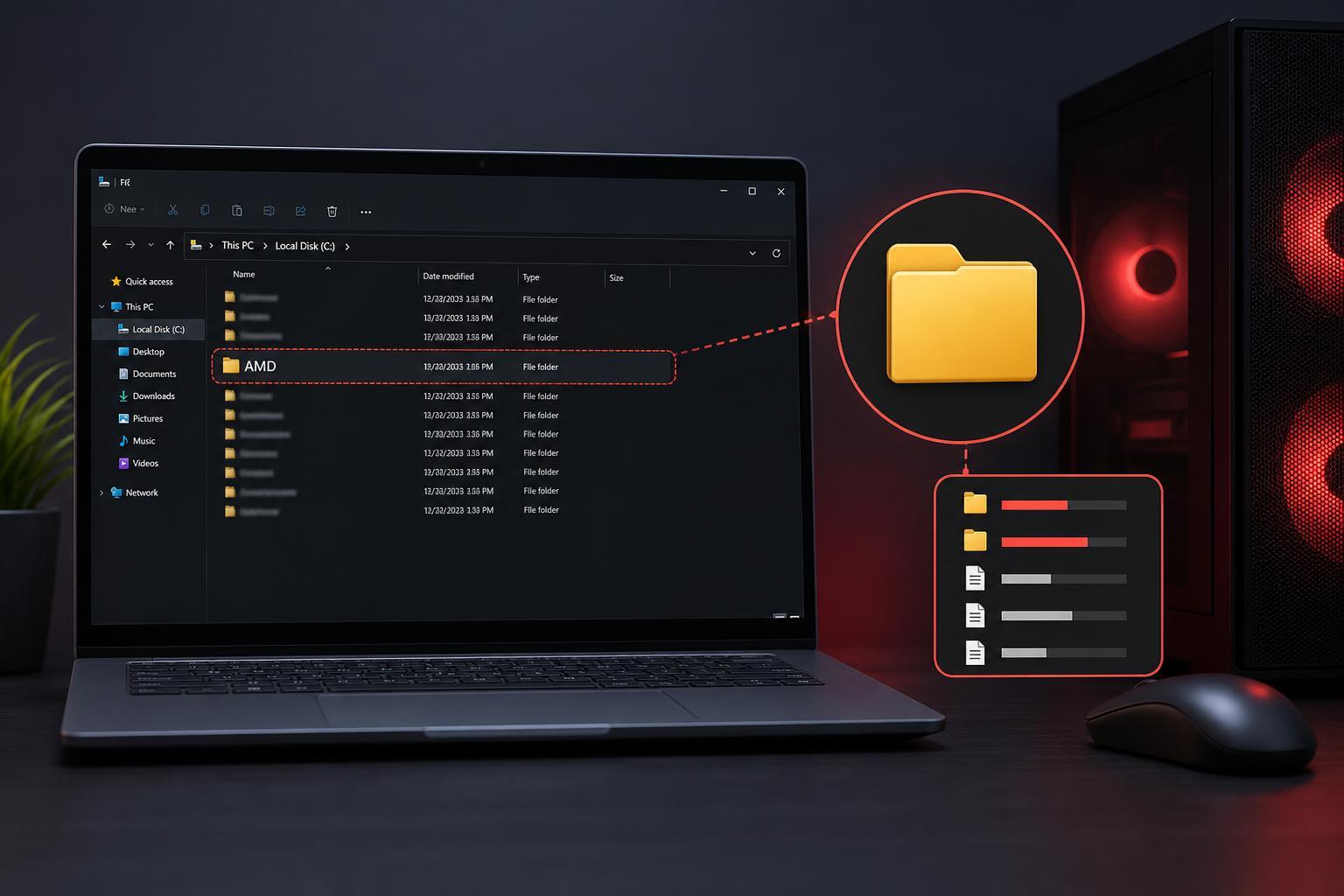
The most common AMD folder that grows large is found in the root of your system drive, usually C:\AMD. It is often created when AMD graphics drivers or chipset drivers are installed. The folder may contain extracted installation files, logs, temporary setup data, and sometimes copies of driver packages used during updates.
That means the folder can often be removed after installation is complete. However, AMD software may also create other folders in AppData or ProgramData that serve a different purpose, so it helps to confirm what you are deleting before clearing anything.
Why the AMD Folder Keeps Getting Bigger
- Driver installers extract files before setup begins and may leave them behind afterward.
- Repeated driver updates can create multiple copies of similar installation files.
- Chipset or GPU software may store logs and temporary data for troubleshooting.
- Manual downloads and extracted archives can be left in place if they were never deleted.
- Some installer packages are several hundred megabytes or more, so even a few leftovers add up quickly.
Check Which AMD Folder You Have
Before deleting anything, make sure you know where the folder is located. A large C:\AMD folder is usually just an installation cache. A folder deeper in the system, such as one inside Program Files, may belong to installed software and should be handled more carefully.
- Open File Explorer.
- Go to the AMD folder and look at its full path in the address bar.
- If the folder is C:\AMD, it is usually safe to investigate for cleanup.
- If the folder is inside Program Files, ProgramData, or AppData, identify the related AMD software before deleting anything.
- If you are unsure, right-click the folder, check its size, and note the subfolders before removing it.
What You Can Safely Delete
If the folder is C:\AMD and you are not in the middle of an AMD driver installation or update, it is generally safe to delete the folder after the drivers have been installed successfully. This removes leftover setup files but does not remove the installed driver itself.
- C:\AMD installer cache folders
- Old AMD setup logs you no longer need
- Extracted driver package contents from previous updates
- Temporary files left behind after interrupted installations
Safer Ways to Clean It Up
If you want the lowest-risk approach, start by uninstalling any AMD software you no longer need, then remove leftover installer folders afterward. Windows Disk Cleanup and Storage settings can also help remove temporary files without requiring you to manually hunt through folders.
- Close any AMD installer or update process that is still running.
- Delete the C:\AMD folder if it only contains old installer files.
- Empty the Recycle Bin if you want the space back immediately.
- Use Windows Settings > System > Storage > Temporary files to remove other junk files.
- If needed, use Disk Cleanup to remove temporary system files as well.
If You Are Short on Space but Want to Be Careful
If you are not sure whether a folder is safe to remove, move it to the Recycle Bin first instead of permanently deleting it. That gives you a quick recovery option if something behaves unexpectedly after cleanup.
You can also check whether the folder is tied to AMD Adrenalin or chipset software already installed on your PC. If those programs are still present in Apps & features, removing only the installer cache is usually the right choice.
When You Should Not Delete It
Avoid deleting AMD-related files if you are currently updating drivers, troubleshooting a failed install, or using a folder that appears to contain the active program files for Radeon Software or chipset utilities. In those cases, the files may still be needed.
- The AMD installer is actively running
- You are in the middle of a driver rollback or repair
- The folder is inside Program Files and belongs to installed software
- The folder appears to be used by an AMD application you launch regularly
If the Folder Comes Back After You Delete It
If C:\AMD returns after a driver update, that is usually normal. AMD installers often extract files to the same location again during future installs. If you want to reduce how often this happens, you can delete the folder after each successful driver installation.
If the folder grows again without you updating drivers, check whether AMD software is repeatedly downloading packages or failing to complete an update. In that case, a driver reinstall or cleanup of old AMD software may be worth considering.
How to Tell Whether Something Is Wrong
- The folder is small and only contains one recent installer package: likely normal.
- The folder keeps growing after every update: probably leftover driver archives.
- The folder contains logs from repeated failed installs: there may be an update issue.
- Windows reports low disk space but you have not installed anything recently: old cache files may be the cause.
A Practical Cleanup Order
- Confirm the folder path and make sure it is the installer cache, not an active program folder.
- Finish or stop any AMD installation or update that is currently running.
- Delete the old C:\AMD folder if it is only holding setup files.
- Remove other temporary files from Windows Storage settings.
- Keep AMD software installed only if you still use it for graphics control, updates, or tuning.
What This Usually Means for Your PC
A growing AMD folder is usually a storage cleanup issue, not a sign that your PC is failing. In most cases, it simply means AMD driver installers have left behind extra files over time. Once you identify the folder correctly, the fix is usually straightforward and low risk.