If you forgot your Discord password, the fastest fix is usually to reset it from the login screen. In some cases, you may also still be able to change your password from inside your account if you are already signed in on another device.
This guide walks through four practical ways to regain access or update your Discord password, along with what to do if you no longer have access to your email or phone number.
1. Reset Your Discord Password From the Login Screen
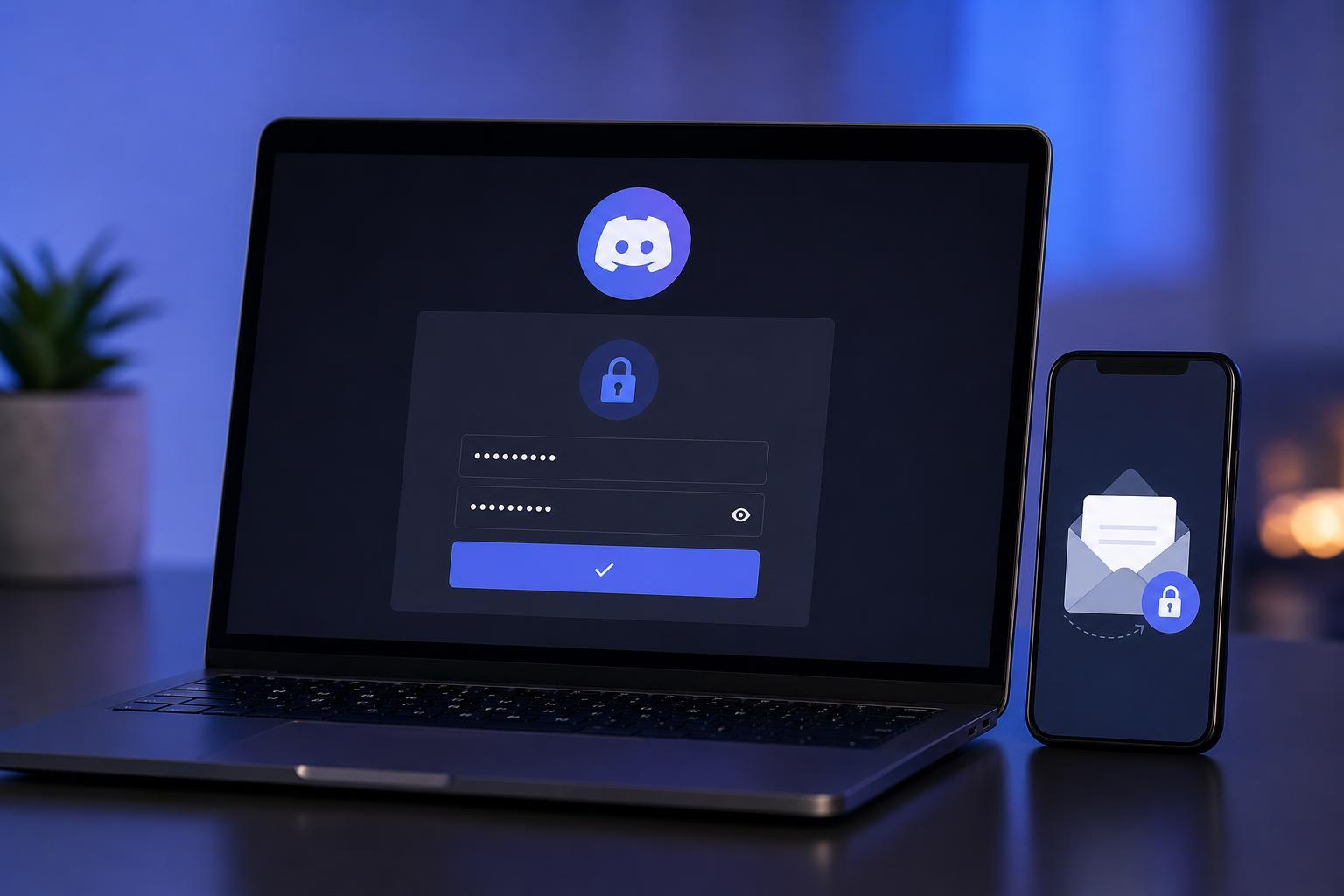
This is the standard method if you cannot sign in. Discord sends a password reset link to the email address linked to your account.
- Open Discord on the app or go to the Discord login page in a browser.
- Click or tap Forgot your password?
- Enter the email address associated with your Discord account.
- Check your email inbox for a password reset message from Discord.
- Open the link in the email and create a new password.
- Sign in again with your new password.
2. Change Your Password While You Are Still Signed In
If you are already logged into Discord on your phone, desktop app, or browser, you can change the password without going through the reset flow.
- Open User Settings in Discord.
- Go to My Account.
- Select Change Password.
- Enter your current password if prompted.
- Type your new password twice and save the change.
3. Use the Password Reset Email if You Cannot Remember the Old One
If you know the email address for your Discord account but not the current password, the reset email is still the correct path. You do not need the old password to create a new one.
- Make sure you are entering the correct email address used for Discord.
- Wait a few minutes in case the message is delayed.
- Search your mailbox for Discord or no-reply emails.
- Try requesting the reset again if the first link expires or does not arrive.
- Avoid using old passwords you have already used on Discord, since the new one must be different.
4. Recover the Account if You No Longer Have Access to Your Email or Phone
If you cannot access the email address tied to your Discord account, password reset may not be enough on its own. In that case, you will need to recover the email account first or contact Discord support.
- Try to regain access to the email account through your email provider’s account recovery process.
- If you still have Discord open on another device, check whether you can update the email in account settings after verifying the account.
- If you suspect the account was taken over, contact Discord Support and explain that you lost access to the email tied to the account.
- Be ready to provide details that help prove account ownership, such as usernames, previous email addresses, or billing information if applicable.
How to Choose the Right Method
The right method depends on what you still have access to. If you are signed in somewhere, changing the password in settings is the simplest option. If you are signed out but still have access to the email address on the account, use the reset link. If you lost access to the email itself, email recovery or Discord support becomes the next step.
- Signed in on at least one device: change the password in account settings
- Signed out but still have access to email: use the reset password link
- No access to email: recover the email account or contact support
- Possible account compromise: check for security alerts and act immediately
Tips to Avoid Getting Locked Out Again
Once you reset your password, it helps to make future recovery easier by keeping your account details up to date.
- Use an email address you actively check and can recover.
- Enable two-factor authentication for extra protection.
- Store your password in a trusted password manager.
- Keep your phone number updated if you use it for verification.
- Review connected devices and log out of sessions you do not recognize.