
A LinkedIn Company Page gives your business a public presence on LinkedIn, lets people follow your updates, and helps you present a more professional brand online. If you want to create one from scratch, the process is straightforward, but it helps to know what you need before you start.
This guide walks through the full setup process, from making sure your personal LinkedIn account is eligible to filling in the company details, adding branding, and publishing the page.
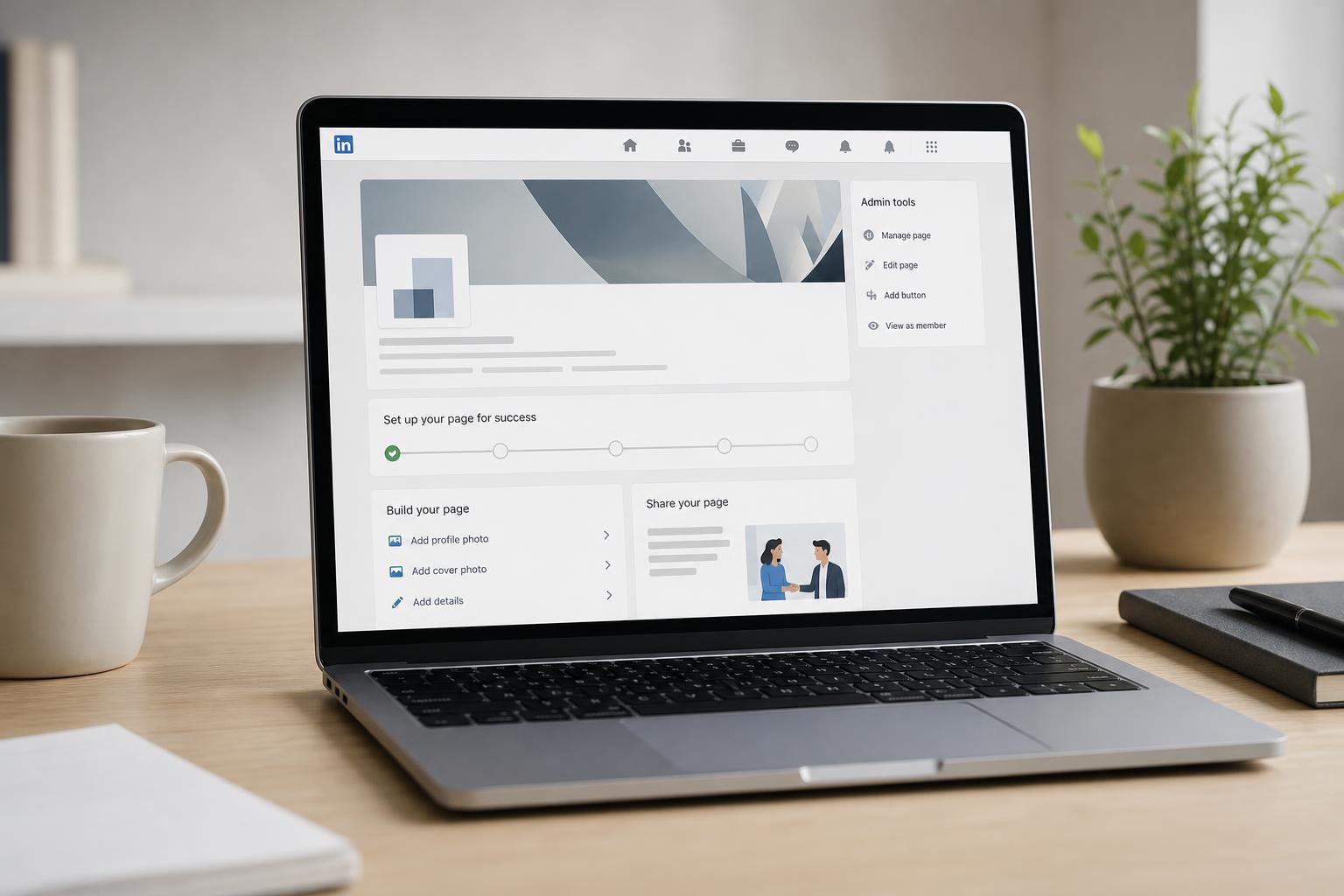
Before You Start
- A personal LinkedIn account with your real name and a complete profile
- A company name that matches your business branding
- A company website, if you have one
- A company email address that matches your organization domain, if possible
- A logo and banner image for the page
How to Create a LinkedIn Company Page
- Sign in to your personal LinkedIn account.
- Open the LinkedIn Pages creation area. On LinkedIn, this is usually found under the Work menu or through the page creation option.
- Choose the type of page you want to create. For most businesses, this will be a Company page.
- Enter your company details, including the page name, public LinkedIn URL, website, industry, company size, and organization type.
- Upload your logo and complete any branding fields that are available.
- Review the page details carefully before publishing.
- Click Create Page or Publish, depending on the version of LinkedIn you are using.
What to Fill In on the Page
LinkedIn will ask for several business details during setup. These fields help people understand what your company does and help LinkedIn display your page correctly in search and recommendations.
- Company name: Use the official business name people will recognize.
- Public URL: Choose a short, clean LinkedIn address if possible.
- Website: Link to your main business site or landing page.
- Industry: Pick the closest match to your actual business.
- Company size: Select the range that best fits your organization.
- Organization type: Choose the option that matches your business structure.
- Logo: Use a clear image that looks good in a small square format.
Add Branding That Looks Professional
After the page is created, spend time completing the visual and profile sections. A finished-looking page is more trustworthy and more likely to attract followers.
- Upload a high-quality logo that is easy to recognize at small sizes.
- Add a banner image that matches your brand and does not look cluttered.
- Write a short, clear description of what your company does.
- Include a location if your business serves a specific area.
- Add contact details and website links where relevant.
- Fill in any specialties, services, or additional business information LinkedIn provides.
Assign Page Administrators
Once the page exists, you can add other people as page admins so they can help manage content, analytics, and settings. This is useful if marketing, HR, or leadership teams need access.
- Open your Company Page.
- Go to admin tools or page settings.
- Find the option to manage admins.
- Add trusted LinkedIn members as super admins or content admins.
- Confirm that each person has the correct role for what they need to do.
What to Do After Publishing
Creating the page is only the first step. To make it useful, you should keep it active and complete the setup with real business information and regular updates.
- Write your first post to introduce the company page.
- Invite employees and colleagues to follow the page.
- Add the page link to your website and email signature if appropriate.
- Check the page regularly for messages, comments, and follower growth.
- Update the page when your branding, services, or company details change.
Common Problems When Creating a Page
If you cannot create a Company Page, the issue is usually related to account setup or missing eligibility requirements.
- Your personal LinkedIn profile may be incomplete.
- Your account may not be old or established enough for page creation.
- You may not have the correct email address verified.
- The company name or URL may already be in use.
- LinkedIn may ask you to confirm your identity or role at the company.
Make the Page Worth Following
A LinkedIn Company Page works best when it is more than a placeholder. Keep the description focused, make the branding consistent, and post content that gives people a reason to follow your business. That might include company news, hiring updates, product launches, helpful tips, or industry insights.
If you set up the page carefully from the start, it becomes a useful hub for your brand instead of just another profile sitting online.